

Last month, I was helping my aunt organize her 80th birthday celebration when we hit a snag. She had hundreds of precious family videos scattered across three different iPhones, and we wanted to create a DVD collection for relatives who still prefer physical media. What started as a simple “let’s burn some videos” project turned into a weekend-long adventure of format compatibility issues and failed burns.
But here’s the thing—once I figured out the right approach, the whole process became surprisingly straightforward. Whether you’re dealing with modern HEVC files from the latest iPhone or just want to preserve those irreplaceable family moments, I’ll walk you through everything I learned.
Why Burn iPhone Videos to DVD in 2025?
The Cloud Storage Reality Check
I used to think cloud storage was the answer to everything. Then my Google Photos account got suspended for three days due to a billing issue, and suddenly I couldn’t access five years of family videos. That’s when it hit me—we’re putting all our digital eggs in baskets we don’t actually control.
Cloud storage comes with monthly fees that add up over time, plus there’s always that worry about account suspensions or service shutdowns.
Why DVDs Still Beat the Cloud
DVDs might seem old-school, but they’ve got some serious advantages. A properly stored DVD can last 25+ years without any subscription fees or internet connection. They play on virtually any DVD player, from that ancient one in your parents’ living room to modern gaming consoles.
Here’s what really sold me on DVDs: I recently found a collection of family videos my dad burned to DVD back in 2003. They still play perfectly, while half the digital files from that era are trapped on dead hard drives.
Understanding iPhone Video Formats and Compatibility
The HEVC Format Trap (And How to Escape It)
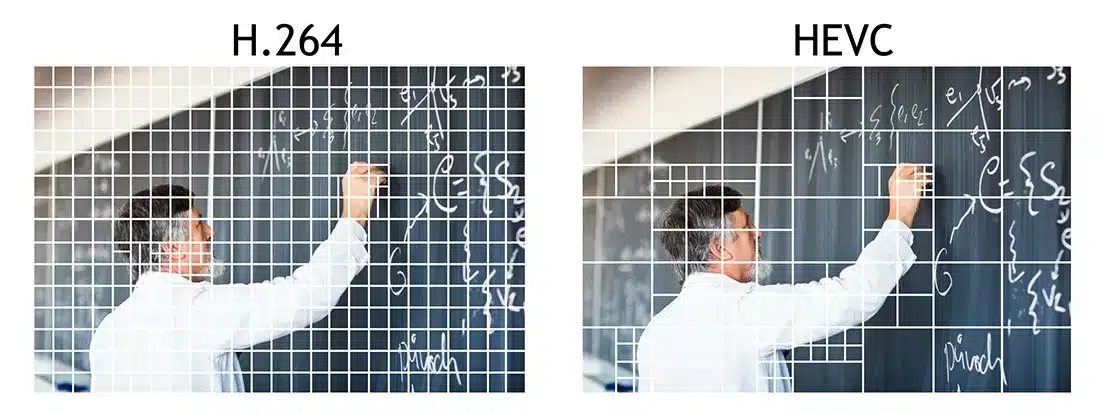
If you’ve got an iPhone from the last few years, your videos are probably recorded in HEVC (also called H.265). It’s Apple’s way of keeping file sizes manageable while maintaining quality, but here’s the catch: most DVD players have no clue what to do with HEVC files.
I learned this the hard way when I spent two hours trying to burn my nephew’s soccer game footage, only to end up with a DVD that wouldn’t play on anything.
Then there’s 4K and HDR footage. Your iPhone 15 Pro might record stunning 4K videos, but DVDs max out at 720p resolution. The conversion process handles this automatically, and the results still look great on most TVs.
DVD Format Requirements
DVDs are picky about formats. They want MPEG-2 video files, specific resolution limits, and particular audio codecs. The good news? You don’t need to understand all the technical details—the right software handles the conversion automatically.
Here’s what you need to know: a standard DVD holds about 4.7GB, which translates to roughly 2 hours of standard quality video or 1 hour of high-quality footage.
💡 Pro Tip: If you’re working with multiple streaming platforms, consider using Cinch Audio Recorder for capturing audio from various sources before creating your multimedia DVDs.
Method 1 – Professional Solution with Wondershare DVD Creator
Why I Stopped Wasting Weekends on Free Tools
After wasting an entire Saturday with free tools that kept crashing or producing unwatchable results, I decided to try Wondershare DVD Creator. The difference was night and day. Where free tools would choke on HEVC files or produce choppy playback, Wondershare handled everything smoothly.
But here’s what really won me over: the batch processing. I could queue up 20 videos, set it running, and come back to perfectly burned DVDs. No babysitting required, no mysterious crashes halfway through.
Complete Step-by-Step Process
Step 1: Download and install Wondershare DVD Creator from their official website.
Step 2: Launch the program and click “Create a DVD Video Disc.” Import videos directly from your iPhone or add files you’ve already transferred to your computer.

Step 3: Choose your DVD menu template. Wondershare includes over 100 professional templates, from elegant wedding themes to playful birthday designs.

Step 4: Customize your chapters and titles. The software can automatically create chapters every few minutes, or you can set them manually at specific points.
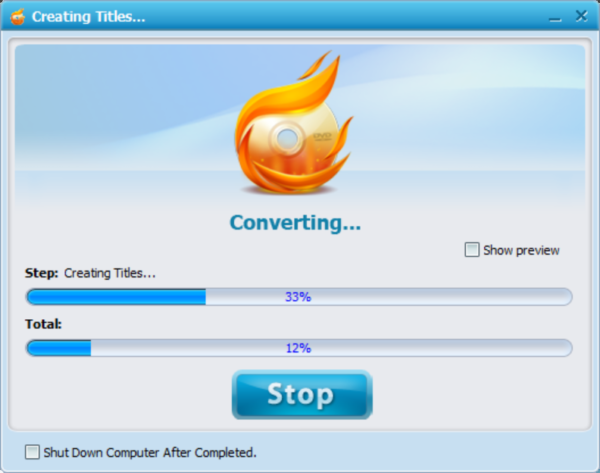
Step 5: Preview everything before burning. This step saved me countless blank DVDs. You can navigate through the menu system and check that everything looks right before committing to the burn process.
Advanced Features That Matter
The built-in video editor is surprisingly capable. I’ve used it to trim out boring parts, adjust brightness for videos shot in poor lighting, and even add simple transitions between clips.
The slideshow feature is brilliant for combining photos and videos. Last Christmas, I created a DVD that mixed family videos with still photos, all synchronized to background music.
Method 2 – Free Solutions and Their Limitations
iTunes/Finder Transfer Method
Getting videos off your iPhone is the easy part. On newer Macs, you just connect your iPhone and use Finder to browse and copy video files. Make sure your iPhone is unlocked and you’ve tapped “Trust This Computer” when prompted.
The files you get will be in their original iPhone formats—usually .MOV or .MP4. These need to be converted before they’ll work properly on a DVD.
Free DVD Burning Software Options
I’ve tried pretty much every free DVD burning tool out there. WinX DVD Author is probably the best of the bunch—it’s genuinely free and can handle basic DVD creation. But it doesn’t support HEVC files without additional codec packs, and the menu templates look outdated.
BurnAware’s free version is decent for simple data discs, but the DVD video creation features are limited. ImgBurn is powerful if you know what you’re doing, but it’s definitely not beginner-friendly.
The Real Price of “Free” Software
Here’s something nobody talks about: free solutions aren’t really free when you factor in your time and frustration. I calculated that I spent about 8 hours over two weekends trying to get free tools to work properly.
With free software, you’re also on your own when things go wrong. No customer support, limited documentation, and online forums full of conflicting advice. When Wondershare costs less than a dinner out and saves you hours of headaches, the math becomes pretty clear.
Professional vs Free Solutions Comparison
| Feature | Wondershare DVD Creator | Free Tools |
|---|---|---|
| HEVC Support | ✅ Automatic conversion | ❌ Requires codec packs |
| Menu Templates | 100+ professional designs | 5-10 basic templates |
| Batch Processing | ✅ Queue multiple videos | ❌ One at a time |
| Technical Support | ✅ Email & chat support | ❌ Community forums only |
| Success Rate | 95%+ reliable burns | 60-70% success rate |
| Time Investment | 30 minutes setup | 8+ hours troubleshooting |
| Cost | $39.95 one-time | “Free” + time cost |
Wireless Transfer Methods for Modern Workflows
If you’re on Mac, AirDrop is honestly the fastest way to get videos from your iPhone to your computer. Just select the videos in your Photos app, tap the share button, and choose your Mac from the AirDrop options.
For bulk transfers, iCloud Photos can be your friend—if you’ve got the storage space. Enable iCloud Photos on both your iPhone and Mac, wait for everything to sync, then download the videos you need.
Third-party options like 3uTools have wireless transfer features that work well, though the interface takes some getting used to. The trade-off with wireless methods is usually speed vs. convenience.
Troubleshooting Common DVD Burning Issues
The most common issue I see is HEVC videos that won’t play on older DVD players. Even if the burning process completes successfully, the resulting DVD might only work on newer players or computers. This is why I always test burned DVDs on the oldest player I can find before making multiple copies.
Most burning failures come down to three things: cheap blank discs, burning too fast, or interruptions during the process. Invest in quality blank DVDs from reputable brands like Verbatim or Sony.
⚠️ Common Burning Mistakes to Avoid:
- Using cheap no-name blank DVDs
- Burning at maximum speed (use 4x-8x instead)
- Running other programs during burning
- Skipping the preview step
- Cramming too much content on one disc
Here’s a tip I learned from a professional videographer: always preview your DVD before making multiple copies. For the best quality, keep your total video length under 90 minutes per DVD.
Advanced Tips for Professional Results
Once you get the hang of DVD creation, you’ll want to streamline the process. I organize videos by event or date before starting, then create a consistent naming scheme.
The difference between a basic DVD and a memorable one often comes down to the little details. Choose background music that matches the mood of your videos. Add chapter titles that actually describe the content instead of generic “Chapter 1, Chapter 2” labels.
For music lovers looking to create multimedia DVDs with both video and audio content, check out our guide on recording streaming music for additional content sources.
Conclusion
Looking back at that weekend project with my aunt, what seemed like a technical nightmare turned into a rewarding experience once I found the right tools and approach. We ended up creating a beautiful collection of family memories that relatives still talk about months later.
The key is choosing the right method for your needs. If you’re doing a one-time project with just a few videos, free tools might work fine. But if you want reliable results without the frustration, professional software like Wondershare DVD Creator is worth every penny.
Don’t let the technical aspects intimidate you. Start with one special video collection—maybe that vacation footage you’ve been meaning to organize—and work your way up to bigger projects. Your future self (and your family) will thank you for preserving those memories properly.
FAQ
Q: Can I burn 4K iPhone videos to DVD?
A: DVDs support maximum 720p resolution, so 4K videos will be downscaled automatically during the conversion process.
Q: How many iPhone videos fit on one DVD?
A: Approximately 2 hours of standard quality video or 1 hour of high-quality video per standard DVD.
Q: Will my DVDs play on all players?
A: Standard DVD format ensures compatibility with 99% of DVD players worldwide, though very old players might have issues with newer disc brands.
Q: Do I need special blank DVDs for video?
A: Regular DVD-R or DVD+R discs work fine. Avoid rewritable (RW) discs as they have lower compatibility with older players.
Q: Can I add subtitles to my iPhone videos on DVD?
A: Yes, professional DVD creation software like Wondershare DVD Creator supports subtitle files in common formats like SRT.