

What if you could transform your collection of MP4 videos into professional DVDs that play seamlessly on any player, complete with custom menus and chapters?
In 2025, converting MP4 to DVD remains one of the most reliable ways to create physical backups of your precious memories and ensure compatibility across all devices.
Whether you’re preserving family videos, creating gift collections, or archiving important content, this comprehensive guide will walk you through every method available—from professional software solutions to free alternatives.
You’ll discover not just how to burn MP4 to DVD, but how to do it right the first time, avoiding common pitfalls that lead to playback issues and quality loss.

Why Your MP4 Files Won’t Just “Work” on DVD Players
Here’s the Deal: It’s Not Just File Copying
Converting MP4 to DVD isn’t simply copying files—it’s a complete format transformation. MP4 files use modern compression algorithms like H.264, while DVDs require MPEG-2 encoding with specific resolution and bitrate limitations. This means your 1080p MP4 will be downscaled to 720×480 (NTSC) or 720×576 (PAL), and the file structure must be reorganized into VIDEO_TS and AUDIO_TS folders.
Not gonna lie, I learned this the hard way when my first DVD creation attempt resulted in a data disc that wouldn’t play on my TV. The key insight? DVD players expect a specific file structure, not just video files burned to disc.
The Space vs Quality Dilemma (And How I Solved It)
A standard DVD-5 holds 4.7GB, while DVD-9 offers 8.5GB. Your conversion quality depends on balancing file size with visual fidelity. Higher bitrates mean better quality but less content per disc.
After burning dozens of family videos, here’s what I’ve found works best for different content types:
| Content Type | Recommended Bitrate | DVD-5 Capacity | DVD-9 Capacity |
|---|---|---|---|
| Family Videos | 6-8 Mbps | ~60 minutes | ~120 minutes |
| Standard Movies | 4-6 Mbps | ~90 minutes | ~180 minutes |
| Archive Content | 3-4 Mbps | ~120 minutes | ~240 minutes |

Why I Always Recommend Professional Software First
Wondershare DVD Creator stands out as the most comprehensive solution for MP4 to DVD conversion. Supporting over 150 video formats, it handles the technical complexities while offering professional features like custom menu creation and batch processing.
Here’s the thing—after testing numerous free alternatives, I’ve found that professional tools consistently deliver better results. They handle edge cases like unusual aspect ratios, multiple audio tracks, and subtitle integration that often cause free software to fail.
Key Features That Make a Difference:
- One-click burning with automatic format detection
- 100+ customizable DVD menu templates
- Built-in video editor for trimming and enhancement
- Batch processing for multiple files
- Support for both DVD-5 and DVD-9 formats
Download Wondershare DVD Creator:
Free Options That Won’t Drive You Crazy
DVD Flick remains the gold standard for free MP4 to DVD conversion. This open-source tool supports multiple formats and creates proper DVD structures, though it lacks the polish of commercial alternatives.
Freemake Video Converter offers a user-friendly interface but includes watermarks in the free version. It’s excellent for occasional use but may frustrate regular users who need clean output.
Windows DVD Maker (legacy Windows versions) provided basic functionality but was discontinued after Windows 7. If you’re still on an older system, you’re in luck. Modern Windows users? You’ll need third-party solutions.
Online Converters: Quick but Limited (Here’s Why I Don’t Recommend Them)
Online tools like Convertio and CloudConvert handle basic MP4 to DVD conversion but have significant limitations:
- File size restrictions (usually 100MB-1GB)
- No custom menu creation
- Privacy concerns with uploaded content
- Dependent on internet speed
Real talk: I uploaded a 500MB family video to three online converters. Only one completed successfully, and the output lacked proper DVD navigation structure. Save yourself the headache.
Built-in System Solutions
macOS: No native DVD burning for video content since iDVD was discontinued Windows 10/11: Can burn data discs but not video DVDs Linux: Command-line tools like dvdauthor work but require technical expertise
Step-by-Step Guide: Converting MP4 to DVD with Wondershare DVD Creator
Don’t Skip This: Preparation That Saves Hours Later
Before starting conversion, organize your MP4 files and ensure adequate disk space. A 2-hour movie typically requires 4-6GB of temporary space during processing.
Here’s something I wish I’d known earlier: always preview your videos before conversion. I once spent 3 hours converting a corrupted file that appeared fine in the file browser but had audio sync issues. Learn from my mistakes!
Download Links:
Step 1: Import and Organize Your MP4 Files
Launch Wondershare DVD Creator and select “Create a DVD Video Disc.” Import your MP4 files using the “+” button or drag-and-drop functionality. The software automatically arranges files and shows total duration.
For videos longer than 30 minutes, enable automatic chapter creation every 5-10 minutes. This improves navigation and user experience—similar to how you’d organize streaming music playlists for better listening flow.

Step 2: Customize Your DVD Menu
Choose from 100+ professional templates or create custom menus. The software offers holiday, travel, sport, and movie themes. Customize background images, music, and text to match your content.
After creating dozens of DVDs, I’ve learned that simple, high-contrast menus work best. Avoid busy backgrounds that make text hard to read on older TVs.

Step 3: Configure Output Settings
Select your target DVD format (DVD-5 or DVD-9), TV standard (NTSC/PAL), and quality settings. For family videos, “High Quality” mode provides the best balance of file size and visual fidelity.
Step 4: Preview and Burn
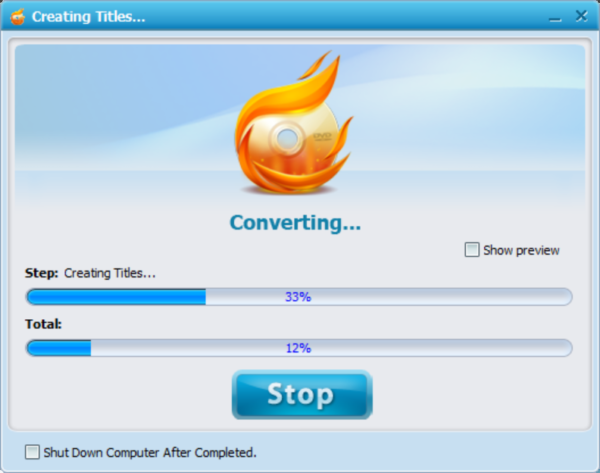
Use the preview function to test navigation and playback before burning. Insert a blank DVD and select burn settings. The process typically takes 30-60 minutes depending on content length and system performance.
Alternative Free Methods That Actually Work
DVD Flick: The Free Champion
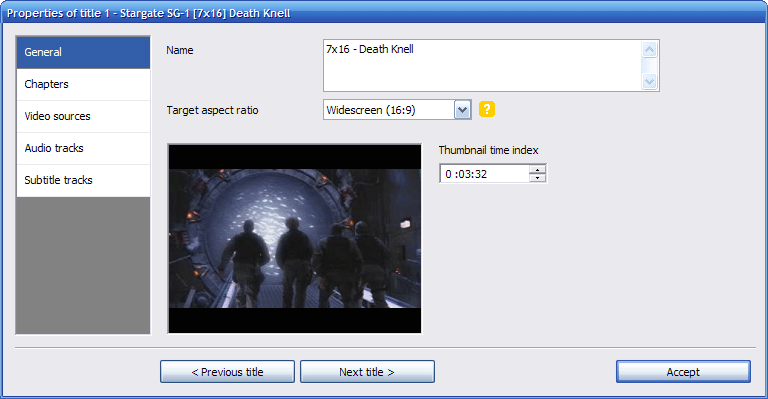
DVD Flick consistently delivers professional results without cost. Its interface may seem dated, but the underlying engine is robust and reliable.
Download DVD Flick and install additional codecs if prompted. Import MP4 files, configure basic settings, and let the software handle encoding. The process is slower than commercial alternatives but produces compatible DVDs.
DVD Flick lacks advanced menu customization and batch processing. For simple projects, it’s excellent. For professional presentations, invest in commercial software.
Using VLC Media Player
VLC’s lesser-known DVD creation feature works for basic conversions. Access through Media > Convert/Save, select DVD output, and configure settings. However, it creates ISO files that require separate burning software.
I use this method for quick archival copies where presentation doesn’t matter.

HandBrake + DVD Authoring Tools
Combine HandBrake for video encoding with DVD Styler for authoring. This two-step process offers maximum control but requires technical knowledge.
Use HandBrake to create DVD-compliant MPEG-2 files, then import into DVD Styler for menu creation and final authoring. Time-consuming but produces professional results.
When Things Go Wrong: Troubleshooting That Actually Helps
Playback Compatibility Issues
Problem: DVD plays on computer but not standalone players Solution: Ensure proper DVD-Video format creation, not data disc burning. Use “Finalize Disc” option in burning software.
A client’s wedding DVD worked perfectly on their laptop but failed on their parents’ older DVD player. The issue? The burning software created a data disc instead of a video disc. Always test on multiple players before mass production.
Quality Loss and Pixelation
Problem: Converted videos appear blurry or pixelated Solution: Adjust bitrate settings and ensure source video quality. DVD format limitations mean some quality loss is inevitable from HD sources.
Use 6-8 Mbps for high-quality content, 4-6 Mbps for standard quality. Lower bitrates cause visible compression artifacts.
Conversion Failures and Errors
Problem: Software crashes or produces corrupted output Solution: Check available disk space, close unnecessary programs, and update software. Corrupted source files often cause conversion failures.
Test with a short video clip first. If successful, the issue likely involves file size or system resources. If it fails, check source file integrity.
Audio Sync Problems
Problem: Audio and video become misaligned during conversion Solution: Use constant frame rate settings and avoid variable bitrate audio sources. Re-encode problematic files before DVD creation.
Always preview the first few minutes and random sections of converted content before burning multiple copies.
Pro Tips That Make Your DVDs Look Professional
Professional Menu Design Principles
Effective DVD menus balance functionality with aesthetics. Use high-contrast colors, readable fonts, and logical navigation structures. Avoid animated backgrounds that distract from menu options.
Keep navigation depth to maximum three levels to prevent user confusion: Main menu → Chapter selection → Special features. This principle applies whether you’re creating DVDs or organizing digital music collections.
Subtitle and Multi-Audio Track Integration
Modern DVD creation software supports multiple subtitle tracks and audio languages. This feature proves invaluable for family content with international relatives or educational materials.
Test subtitle timing on different playback speeds. Some players handle subtitle display differently, especially during fast-forward or rewind operations.
Batch Processing for Efficiency
When converting multiple MP4 files, use batch processing features to maintain consistent settings across all content. Create templates for recurring projects like family events or business presentations.
Process similar content together (same resolution, duration, quality requirements) to minimize manual adjustments and ensure consistent output quality.
Quality Assurance Testing
Always burn a test disc before mass production. Test on multiple players, including older models, to ensure broad compatibility. Check chapter navigation, menu functionality, and audio/video sync throughout the content.
Converting MP4 to DVD in 2025 requires understanding both technical requirements and practical considerations. While free tools like DVD Flick handle basic conversions, professional software like Wondershare DVD Creator provides the reliability and features needed for important projects. The key to success lies in proper preparation, appropriate software selection, and thorough testing before final production.
Remember that DVD format limitations mean some quality compromise from HD sources, but the trade-off provides universal compatibility and physical backup security. Whether preserving family memories or creating professional presentations, following these guidelines ensures your MP4 to DVD conversions will play reliably across all devices for years to come.
Start with small test projects to familiarize yourself with the process, then scale up to larger collections. With the right approach and tools, you’ll create professional-quality DVDs that stand the test of time. For more digital media solutions, check out our comprehensive tutorials and tips section.
FAQ
Q: Can I fit a 2-hour MP4 movie on a standard DVD? A: Yes, but quality depends on bitrate settings. Use 4-6 Mbps for acceptable quality on DVD-5 discs.
Q: Why won’t my burned DVD play on some players? A: Compatibility issues often stem from incorrect disc finalization or data disc creation instead of video disc format.
Q: Is it legal to convert MP4 files to DVD? A: Converting your own content is legal. Copyrighted material requires proper licensing or fair use considerations.
Q: What’s the difference between DVD-5 and DVD-9? A: DVD-5 holds 4.7GB (single layer), while DVD-9 holds 8.5GB (dual layer). DVD-9 offers more storage but costs more.
Q: Can I add custom menus to free DVD creation software? A: Limited options exist. DVD Flick offers basic menus, but professional software provides extensive customization.